Welcome to CanvasTool
CanvasTool is a powerful tool for Canvas that helps students complete coursework faster and learn more efficiently.
Reviews
What Our Users Say

"Setup was instant and everything worked exactly as advertised. Definitely saved me time."

"I started with a day key just to test it and ended up upgrading. Solid tool."

"Clean UI, no confusion. I liked that access was delivered immediately after checkout."
"Used it for a short period and it did what I needed. Pricing options make sense."

"Tried a few alternatives before this. This one felt simpler and more reliable."

"Had a small question at first and support responded fast. Overall good experience."
Pricing
Choose Your Duration
Pick a plan that fits your needs. Instant access after purchase.
FAQ
Quick answers to common questions
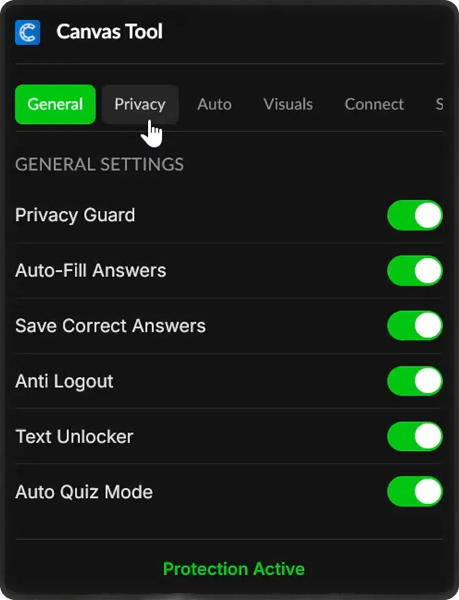
CanvasTool is a browser extension that modifies Canvas behavior to hide tab switching, automatically save answers, and bypass detection systems. It works seamlessly in the background.
Yes. CanvasTool intercepts Canvas's tracking mechanisms at the browser level, preventing any suspicious activity from being logged. Your instructors see nothing unusual.
After purchasing, you'll instantly receive a download link and activation key via email. Setup takes less than 2 minutes.
CanvasTool works on Chrome, Edge, Brave, and any Chromium-based browser. Firefox support is coming soon.
Due to the nature of digital products, all sales are final. However, we offer a day key option so you can test the tool before committing to longer plans.
No. CanvasTool operates at the browser level and intercepts Canvas tracking before it can log anything. There are no traces of the extension in Canvas's systems.
Yes. CanvasTool only modifies Canvas pages and doesn't collect any personal data. The extension is regularly updated to ensure compatibility and security.
Make sure you're on a Canvas page and the extension is enabled. The menu appears when you're in a quiz or assignment. If issues persist, try reloading the page or reinstalling the extension.
Discord logging lets you save quiz questions to a Discord channel. You'll need to create a Discord webhook URL and paste it in the CanvasTool settings. Full instructions are provided in the extension.
Auto Answers requires previous attempts to have been saved. If this is your first time taking a quiz, there are no answers stored yet. Complete the quiz once, and answers will auto-fill on subsequent attempts.